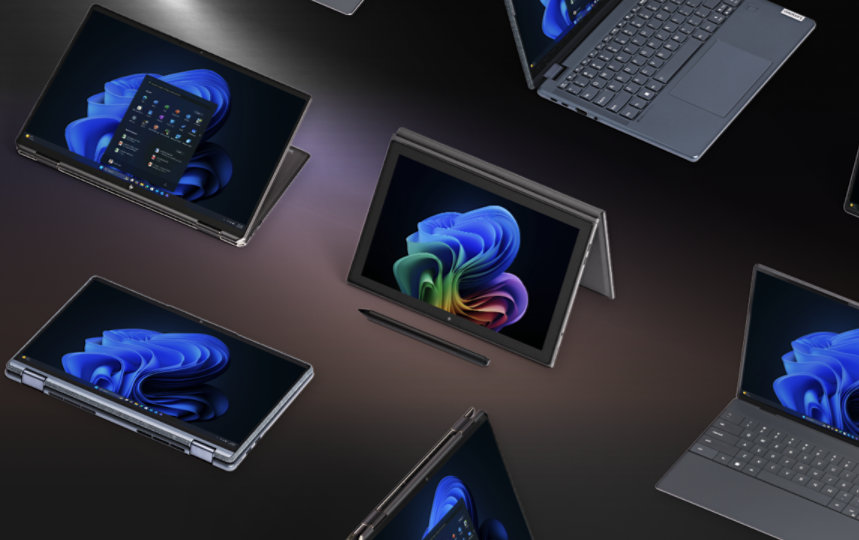
How to Find the Best Computer for Me can feel confusing. There are so many brands, models, and technical terms. Prices range from under $300 to over $3,000, and it’s hard to know what features really matter for your needs. You want a computer that works well, lasts for years, and fits your budget.
But how do you make sense of all the choices, especially if you’re not a tech expert?
This article will help you cut through the confusion. You’ll learn how to find the best computer for you by focusing on your own needs, not just the latest trends. We’ll cover everything: how to decide between a laptop or desktop, which parts matter most, how much memory you really need, and what to look for in a screen. You’ll also see real-life examples, tables comparing key specs, and practical advice on where to buy and how to avoid common mistakes. By the end, you’ll feel confident choosing a computer that’s just right for you—no more guessing.
Understanding Your Needs
Before you start looking at brands and prices, it’s important to think about how you’ll actually use your computer. This step will save you money and frustration.
Ask Yourself These Questions
- What will I do with my computer? Basic tasks like browsing the web, checking email, and using Microsoft Office need less power than editing videos or playing new games.
- Where will I use it? If you plan to move your computer often, a lightweight laptop is better. If it stays on your desk, a desktop could be perfect.
- What’s my budget? Set a clear range. This helps you avoid overspending and makes it easier to compare options.
- Do I need special features? Touchscreen, long battery life, or a very large screen are examples.
Common Use Cases
- Home and school: Browsing, writing, video calls, streaming movies
- Work: Office software, web apps, heavy multitasking
- Creative work: Photo/video editing, graphic design
- Gaming: Playing modern 3D games at high settings
- Travel: Lightweight, long battery, durable
Non-obvious insight: Many people overpay for features they never use. For example, you don’t need a powerful graphics card if you’re not gaming or editing videos.
Laptop Vs Desktop: Which Is Right For You?
This is one of the first big decisions. Both laptops and desktops have strong points, but the best choice depends on your lifestyle.
Laptops
Laptops are portable, have built-in screens and keyboards, and run on battery power. They’re ideal for students, travelers, or anyone who needs to move around.
Pros:
- Easy to carry
- Use anywhere: Home, office, coffee shop
- All-in-one design (screen, keyboard, touchpad, webcam)
Cons:
- Harder to upgrade (memory, storage)
- Usually more expensive for the same power
- Smaller screens and keyboards can be less comfortable
Desktops
Desktops are bigger and meant to stay in one place. They’re great for home offices, gaming, and creative work.
Pros:
- More power for the price
- Easier to upgrade and repair
- Larger screens, full-size keyboards
Cons:
- Not portable
- Need a separate monitor, keyboard, and mouse
Quick Comparison
| Feature | Laptop | Desktop |
|---|---|---|
| Portability | High | Low |
| Performance per Dollar | Lower | Higher |
| Upgrades | Limited | Easy |
| Screen Size | 13″–17″ | Any size |
| Battery Life | Yes | No |
Non-obvious insight: Even if you pick a desktop, you can always add a small, cheap laptop or tablet later for travel.
Key Computer Parts: What Really Matters
Understanding the main parts of a computer helps you make smart choices. Some parts matter much more than others, depending on what you do.
Processor (CPU)
The CPU is the “brain” of your computer. It handles calculations and tasks.
- Intel Core i3/i5/i7/i9 or AMD Ryzen 3/5/7/9 are common.
- For basic tasks, I3 or Ryzen 3 is enough.
- For work or creative use: I5/i7 or Ryzen 5/7 is better.
- For gaming or heavy editing: I7/i9 or Ryzen 7/9.
Memory (RAM)
RAM helps your computer run multiple programs at once.
- 8GB is enough for most users.
- 16GB is better for heavy multitasking, editing, or gaming.
- 32GB or more is for advanced users.
Storage
This is where your files live.
- SSD (Solid State Drive): Fast, quiet, more expensive. Makes your computer much quicker.
- HDD (Hard Disk Drive): Cheaper, slower, more storage for less money.
- 256GB SSD is enough for basic use. 512GB+ is better if you store lots of files.
Graphics Card (GPU)
Needed for games, video editing, or 3D design.
- Integrated graphics: Fine for browsing, streaming, and office work.
- Dedicated GPU: Needed for gaming or creative software (NVIDIA GeForce, AMD Radeon).
Display
Look for size, resolution, and quality.
- 13–14” is portable; 15–17” is better for work or movies.
- Full HD (1920×1080) is standard now.
- Higher resolutions are nice, but they use more battery and cost more.
Battery Life
Important for laptops. Look for at least 6–8 hours if you travel or work away from outlets.
Ports And Connectivity
Make sure you have enough USB ports, HDMI, headphone jack, and SD card slot if needed.
Practical tip: If you use a lot of accessories, desktops and business laptops often have more ports.
Operating System: Windows, Mac, Or Chrome?
Your choice of operating system (OS) affects which programs you can run and how your computer feels to use.
Windows
- Most common worldwide
- Works with most software and games
- Lots of hardware choices (laptops, desktops, tablets)
- Good for business and home
Macos (apple)
- Used only on Apple Mac computers
- Known for stability, security, and design
- Best for creative work (music, video, design)
- More expensive, fewer hardware options
Chrome Os (chromebooks)
- Simple, fast, and secure
- Works best if you use Google apps (Gmail, Docs, Drive)
- Less powerful, but very affordable
- Not for heavy gaming or editing
Non-obvious insight: If you use Microsoft Office, check if your chosen OS supports it fully. For example, Office on Chromebooks is more limited.

How Much Should You Spend?
Prices can be confusing. Here’s what to expect:
- Under $400: Basic laptops or Chromebooks, good for web, email, and streaming
- $500–$800: Mid-range laptops or desktops, good for most work and school tasks
- $900–$1,500: High-end laptops/desktops, gaming, creative work, or business use
- $1,600+: Premium models, advanced gaming, or professional editing
Practical tip: Spending a little more on a fast SSD and enough RAM is better than getting the “latest” processor.
Comparing Popular Computer Types
To make things clearer, here’s a simple side-by-side look at popular choices.
| Type | Best For | Price Range | Example Models |
|---|---|---|---|
| Basic Laptop | Students, web, email | $300–$700 | Lenovo IdeaPad, HP Pavilion |
| Ultrabook | Business, travel | $900–$1,500 | Dell XPS, MacBook Air |
| Gaming Laptop | Gaming, editing | $1,000–$2,500 | Asus ROG, Alienware |
| Desktop PC | Home, office, gaming | $400–$2,000 | Dell Inspiron, HP Envy |
| Chromebook | Web, students | $200–$500 | Acer Chromebook, Samsung Chromebook |
| Mac (iMac, Mac Mini) | Design, creative | $1,000–$2,500 | iMac, Mac Mini |
Non-obvious insight: Many “gaming” laptops are also great for video editing because they have powerful graphics cards.
Decide On Screen Size And Quality
The screen is what you look at every day, so don’t ignore it.
What To Look For
- Size: 13”–14” is easy to carry; 15”–17” is better for comfort.
- Resolution: Full HD (1920×1080) is the minimum for clear text and images.
- Panel type: IPS panels have better colors and viewing angles than TN panels.
- Brightness: 250 nits is okay indoors; 300+ nits is better if you work by windows or outside.
Practical tip: Glossy screens look nice but show reflections. Matte screens reduce glare.
Storage Choices: Ssd Vs Hdd
Your files, photos, and software need safe, fast storage.
Ssd (solid State Drive)
- Much faster than HDD
- Quieter, uses less power
- More expensive per gigabyte
HDD (hard Disk Drive)
- Slower, but cheaper for large storage
- Good for backup or if you have lots of big files
How Much Storage Do You Need?
- 256GB: OK for light users (web, documents, streaming)
- 512GB: Good for most people (photos, Office, some games)
- 1TB or more: Needed for large video files, lots of games, or creative work
Non-obvious insight: Many laptops let you add a cheap external drive later if you need more space.
Battery Life: Why It Matters
If you buy a laptop, battery life is key.
- 6–8 hours: Fine for most workdays or school
- 10+ hours: Good for travel or long classes
- Gaming and powerful laptops may have shorter battery life due to high power use
Practical tip: Real battery life is often 20–30% less than what the company claims, especially if you use high brightness or heavy apps.
Keyboard And Touchpad Quality
You’ll use the keyboard and touchpad every day, so they must feel comfortable.
- Try typing on the keyboard before buying, if possible
- Look for backlit keys if you work in low light
- A glass touchpad is smoother than plastic
Non-obvious insight: Many budget laptops cut costs here. Even on a powerful laptop, a poor keyboard can ruin the experience.
Upgradability And Repairs
Some computers are easy to upgrade; others are not.
- Desktops: Easy to add RAM, swap hard drives, or upgrade graphics
- Business laptops: Often let you upgrade RAM or storage
- Ultrabooks/MacBooks: Usually sealed; upgrades are hard or impossible
If you want your computer to last 5 years or more, check if you can upgrade important parts.
Practical tip: Upgrading RAM or storage can make an old computer feel new.
Brand Reputation And Support
Not all brands offer the same quality or support. A good warranty or helpful customer service can save you time and money.
- Apple: Excellent support, but repairs can be costly
- Dell, Lenovo, HP: Good global support and business options
- Asus, Acer, MSI: Often cheaper, but support varies by country
Non-obvious insight: Check online reviews about warranty service in your country—not just the specs.
Where To Buy: Online Vs Local Store
Both options have pros and cons.
Online
- More choice and better prices
- Easy to compare models
- Can read user reviews
- Delivery takes time
Local Store
- Try before you buy (keyboard, screen, weight)
- Immediate pickup
- Easier returns or repairs
Practical tip: Some stores match online prices if you ask.
Common Mistakes To Avoid
Avoiding these mistakes can save you money and trouble.
- Buying the cheapest option: It may be slow or break quickly.
- Paying for features you won’t use: Like a high-end GPU for only email and Netflix.
- Ignoring upgradability: Some laptops cannot be upgraded at all.
- Choosing style over function: A slim laptop looks nice but may overheat or have poor battery.
- Skipping reviews: User reviews can reveal real problems you won’t see in ads.
- Not checking keyboard/screen quality: These affect daily comfort.
- Buying too much or too little storage: Plan for what you’ll need in a year or two.
- Forgetting about warranty/support: Repairs can be expensive without a good plan.
Non-obvious insight: Many buyers regret not getting an SSD. The speed difference is huge, even on cheap computers.
Example Buying Scenarios
Let’s look at a few real-life examples to show what computer might fit different needs.
A) Student On A Budget
- Needs: Web, Office, video calls, streaming
- Best choice: Chromebook or basic Windows laptop (8GB RAM, 256GB SSD)
- Price: $350–$600
B) Home Office Worker
- Needs: Office software, web, multitasking, occasional Zoom calls
- Best choice: Mid-range laptop or desktop (Intel i5, 16GB RAM, 512GB SSD, Full HD screen)
- Price: $600–$1,200
C) Graphic Designer
- Needs: Adobe Creative Suite, large files, accurate screen colors
- Best choice: MacBook Pro or high-end Windows laptop (i7/Ryzen 7, 16GB+ RAM, 1TB SSD, good IPS display)
- Price: $1,400–$2,500
D) Gamer
- Needs: Fast graphics, high refresh rate screen, good cooling
- Best choice: Gaming laptop or desktop (i7/Ryzen 7, 16–32GB RAM, NVIDIA RTX GPU, 512GB+ SSD)
- Price: $1,000–$2,500
E) Frequent Traveler
- Needs: Lightweight, long battery, durable body
- Best choice: Ultrabook (13–14”, i5, 8–16GB RAM, 256GB SSD, 10+ hour battery)
- Price: $900–$1,400
Comparing Top Brands (2024)
Here’s how leading brands stack up on quality and support.
| Brand | Strengths | Weaknesses | Best for |
|---|---|---|---|
| Apple | Build quality, support, screen | High price, limited upgrades | Design, media, business |
| Dell | Wide range, good support | Some models less durable | Office, students, gaming |
| Lenovo | Great keyboards, value models | Sometimes confusing model names | Business, home, students |
| HP | All price ranges are easy to find | Some budget models have weak screens | Home, office |
| Asus | Innovative, affordable gaming | Support varies by region | Gaming, students |
| Acer | Low price, lightweight options | Mixed build quality | Budget buyers, students |
Practical tip: Check if the exact model you want has good reviews—brands make both excellent and poor models.

How To Read Specs Like A Pro
Technical words can be confusing. Here’s what the key terms mean:
- Processor: More cores/threads = better for multitasking. Higher GHz = faster, but not always noticeable for basic use.
- RAM: More is better for multitasking, but 8GB is enough for most.
- SSD: Makes the computer start and load apps much faster.
- Resolution: Higher is sharper, but uses more battery.
- GPU: Needed for gaming, 3D, or video editing.
Practical tip: If you’re not sure about a spec, search for real-world reviews or benchmarks.
Where To Find Trusted Reviews
Don’t just trust ads or shop displays. User and expert reviews give real-life feedback. Trusted sites include:
- CNET
- PCMag
- The Verge
- Tom’s Hardware
- Laptop Mag
You can find more at Consumer Reports.
Non-obvious insight: Look for reviews that mention long-term use, not just “first impressions.”
Making Your Final Decision
Take your time. List your must-haves (like 16GB RAM, Full HD, under 4 lbs). Compare a few models that meet your needs and budget. Check real reviews and warranty details. Don’t rush—most regrets come from buying too quickly or falling for a “deal” on a model that doesn’t really fit.
If you’re still not sure, ask a friend who knows computers, or visit a local store to try before you buy.
Frequently Asked Questions
What Is The Most Important Part When Choosing A Computer?
The processor and RAM matter most for speed, but the type of storage (SSD vs HDD) also makes a big difference. For most people, a fast SSD and enough RAM (at least 8GB) make the computer feel fast and smooth.
How Long Should A New Computer Last?
With normal use and care, a good laptop or desktop should last 4 to 6 years. Desktops can sometimes last longer because you can upgrade them more easily. Battery life on laptops may start to drop after 2–3 years.
Is It Better To Buy A Computer Online Or In A Store?
Online shopping offers more choices and often better prices. In-store lets you test how the keyboard and screen feel. If you’re unsure, look at models in-store, then buy online if there’s a better deal.
How Much Ram Do I Really Need?
8GB is enough for web, office, and streaming. 16GB is better for heavy multitasking, gaming, or creative work. More than 16GB is only needed for advanced tasks like video editing or 3D design.
Should I Get A Mac Or A Windows Pc?
Choose Mac if you like Apple’s design, work with media, or already use other Apple devices. Pick Windows for more hardware choices, gaming, or business software. If you mostly use Google apps and want something simple, consider a Chromebook.
No matter your budget or needs, the right computer is out there for you. By focusing on what matters most for your daily use, you can find a machine that feels fast, comfortable, and reliable—without overpaying or feeling lost in technical details.
Take your time, read real reviews, and remember that the “best” computer is the one that fits your life.