
How to Fix an Ethernet Cable Splitter that just won’t work right? Maybe your internet connection is dropping, or devices aren’t communicating as they should.
It’s frustrating when a simple splitter causes big network headaches. But before you toss it out or call a pro, there are easy ways you can fix it yourself. You’ll discover straightforward tips to troubleshoot and repair your Ethernet cable splitter so your network runs smoothly again.
Keep reading, and you’ll save time, avoid costly replacements, and get your devices connected without hassle.
Why Ethernet Splitters Fail
Ethernet cable splitters often fail because of their design and usage limits. They do not work like simple power splitters. A splitter alone cannot create two full network connections. Many people expect one cable to serve two devices without problems. This misunderstanding causes most failures. Knowing why splitters fail helps fix or avoid issues.
Limitations Of Passive Splitters
Passive splitters do not boost or manage signals. They just divide wires inside the cable. This reduces signal strength and speed. Passive splitters cannot handle high data rates well. They work only if the total cable length is short. Long cables with splitters cause weak or lost signals. Passive splitters are not true network splitters but wire dividers.
Need For Paired Units
Splitters must be used in pairs for proper function. One splitter divides the signal at one end. The matching splitter recombines signals at the other end. Without the pair, devices cannot communicate correctly. Many errors come from using a single splitter only. Always check both ends of the connection. Paired units keep the network stable and reliable.
Common Signal Issues
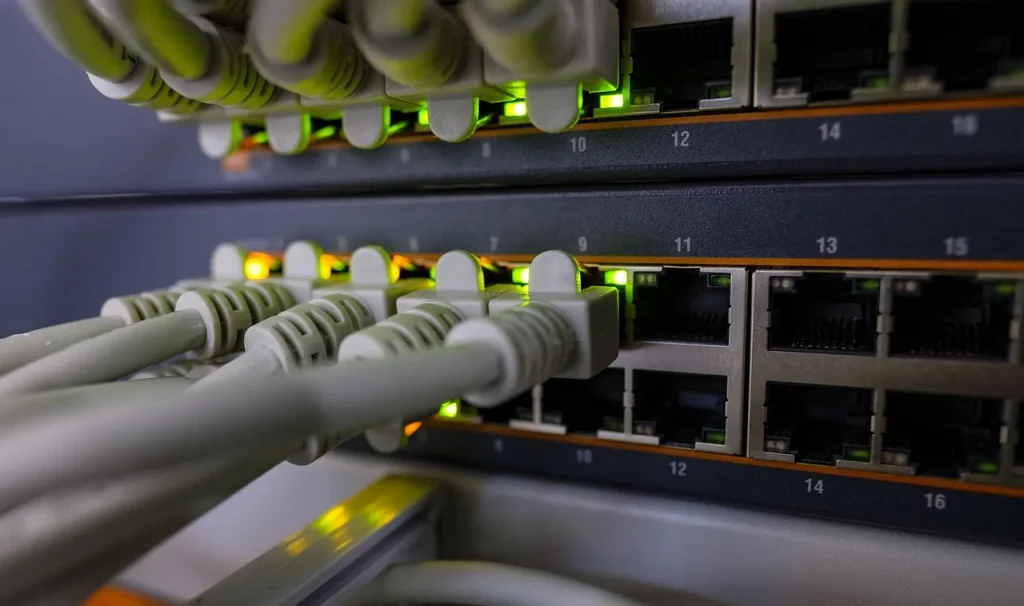
Splitters cause signal loss, noise, and interference. These issues reduce network speed and quality. Devices may disconnect or fail to get an IP address. Poor signal can cause slow internet and lag. Damaged cables or connectors worsen these problems. Testing cables and connections helps spot issues. Replacing splitters with switches often solves signal problems.
Tools And Materials Needed
Fixing an Ethernet cable splitter needs specific tools and materials. These help ensure the repair is safe and effective. Using the right equipment also saves time and prevents further damage.
Gathering these tools before starting makes the process smoother. Each tool has a unique role in the repair. Knowing their use helps you fix the splitter correctly.
Ethernet Couplers
Ethernet couplers join two Ethernet cables. They act as a simple bridge between broken or cut cables. These small devices are easy to use and require no special skills.
Couplers maintain the signal quality and extend cable length. They are perfect for quick fixes without needing to replace the entire cable.
Cable Testers
Cable testers check the condition of Ethernet cables. They detect breaks, shorts, or wiring errors inside the cable. Using a tester ensures the cable works after repair.
Testers give clear results with lights or sounds. This helps you find exact problems and confirm your repair is successful.
Crimping Tools And Connectors
Crimping tools attach connectors to Ethernet cables. These tools press the connector pins into the cable wires. This creates a strong and reliable connection.
RJ45 connectors are commonly used with Ethernet cables. Proper crimping prevents loose connections and signal loss. A good crimping tool is essential for a lasting repair.
How to Fix an Ethernet Cable Splitter
Fixing a damaged Ethernet splitter cable can restore your network connection quickly. A faulty cable splitter disrupts data flow and causes slow internet or no connection. Repairing it involves identifying the damage, using proper tools, and applying correct techniques. This section guides you through simple steps to fix your Ethernet splitter cable effectively.
Identifying Cable Damage
Start by inspecting the Ethernet splitter cable closely. Look for visible cuts, bends, or frayed wires along the cable length. Check the connectors for loose or broken pins. Test the cable by connecting it to a device and checking for signal loss or intermittent connection. Pinpointing the exact damage helps decide the best repair method.
Using An Ethernet Coupler For Repairs
An Ethernet coupler is a handy tool to repair broken cables. Cut out the damaged section of the cable cleanly. Insert each end of the cut cable into the coupler ports. Push firmly to ensure a secure connection. This method joins two cable pieces without complex wiring. Test the cable after repair to confirm proper data flow.
Proper Cable Termination Techniques
Correct termination ensures a strong and stable Ethernet connection. Use a cable stripper to expose the wires without damaging them. Arrange the wires in the correct order following the T568A or T568B standard. Insert wires into the RJ45 connector pins carefully. Use a crimping tool to secure the connector firmly. Double-check the cable with a tester for proper termination.
Improving Splitter Performance
Improving the performance of an Ethernet cable splitter is key to maintaining a strong, reliable network connection. Small adjustments can prevent signal loss and connectivity issues. Follow these simple steps to enhance your splitter’s efficiency and keep your devices online without interruptions.
Ensuring Secure Connections
Check that all cables fit tightly into the splitter ports. Loose connections cause weak signals and dropouts. Push each cable firmly until it clicks or feels secure. Avoid forcing cables, which may damage the connectors. Use high-quality cables to ensure a better fit and signal quality.
Avoiding Cable Loops
Keep Ethernet cables straight and avoid loops or sharp bends. Loops create interference and reduce signal strength. Arrange cables neatly and give them enough slack to prevent tension. Use cable ties or clips to organize wires and stop accidental tangles. A clean setup improves splitter performance and extends cable life.
Testing With Professional Equipment
Use a network cable tester to check the splitter and cables. This tool identifies wiring faults, breaks, or poor connections. Testing helps find problems early before they affect your network. Replace any cables or splitters that fail the test. Regular checks keep your Ethernet setup running smoothly and efficiently.
Alternatives To Ethernet Splitters
Ethernet cable splitters often cause confusion and connection problems. Many users seek better options that ensure stable and efficient network performance. Alternatives to traditional splitters provide improved reliability and speed. These solutions suit home and office networks alike, offering easier management and fewer issues.
Using Network Switches
Network switches are devices that connect multiple Ethernet cables. They allow many devices to share a single internet connection properly. Unlike splitters, switches manage data traffic to avoid collisions. This means faster and more stable connections for all devices. Switches are easy to set up and usually require no extra configuration. They work well in both small and large networks.
Benefits Of Active Splitters
Active splitters are powered devices that boost signal strength. They help maintain network speed even when splitting connections. These splitters reduce signal loss common in passive splitters. Active splitters also support longer cable runs without performance drops. They are ideal for setups needing multiple Ethernet ports without losing quality.
When To Upgrade Your Network Hardware
Sometimes, network issues come from outdated hardware. Old routers, switches, or cables can slow down your internet. Upgrading to modern devices can fix many problems. New hardware supports higher speeds and better security. It also handles multiple devices more efficiently. Consider upgrading if you face constant connection drops or slow speeds.
Troubleshooting Common Issues
Troubleshooting common issues with an Ethernet cable splitter helps restore network performance. Problems often arise from simple connection errors or device compatibility. Identifying the exact cause speeds up fixing the splitter. Below are typical problems and how to address them effectively.
Intermittent Connectivity Problems
Intermittent connection means your network cuts in and out. Loose cables or poor contacts often cause this. Check both ends of the splitter and Ethernet cables. Firmly plug them in to secure the connection. Replace any frayed or damaged cables immediately. Interference from nearby electronics can also disrupt signals. Keep cables away from power cords and wireless devices. Restart your router and devices to reset connections.
Signal Loss And Quality Drops
Signal loss reduces internet speed and causes lag. Long cable runs or low-quality splitters can weaken signals. Use shorter cables or higher-quality splitters with shielding. Avoid using too many splitters in series, as this degrades signal strength. Test the splitter by connecting devices directly to the router. If direct connection improves speed, the splitter may be faulty. Consider upgrading to a network switch for better performance.
Power Requirements For Active Devices
Some Ethernet splitters need external power to function properly. Passive splitters do not boost signals and may fail with multiple devices. Active splitters or network switches require power adapters. Verify if your splitter model needs power. Plug it into a reliable power source to avoid interruptions. Without power, active devices cannot maintain strong connections. Always check the device manual for power specifications before installation.
Frequently Asked Questions
Why Won’t An Ethernet Splitter Work?
An Ethernet splitter won’t work alone because it requires a matching splitter at both ends. It only divides wires, not data signals. Devices need direct router connections to communicate properly, so splitters cannot create two independent network links from one cable without additional network hardware.
Is It Possible To Fix A Cut Ethernet Cable?
Yes, you can fix a cut Ethernet cable using an Ethernet coupler to join the two ends. Ensure proper wiring and secure connections for optimal performance.
Why Is My Cable Splitter Not Working?
Your cable splitter may not work due to loose connections, damaged cables, or a lack of power. Ensure all cables connect firmly and check if the splitter requires external power. Some splitters need a matching unit at the other end. Faulty or incompatible devices can also cause issues.
Why Is My Splitter Not Working?
Your splitter may not work due to improper connections, a missing paired splitter, damaged cables, or a lack of power supply. Ensure both splitters are used, cables are intact, and devices support splitting. Test source devices and connections for proper signal output.
Conclusion
Fixing an Ethernet cable splitter is simple with the right steps. Always check connections carefully. Use matching splitters on both ends for best results. Replace damaged cables to avoid signal loss. Testing your setup helps find the exact problem. Small tools like couplers make repairs easy.
Follow these tips to keep your network running smoothly. A working splitter ensures a stable internet for all devices. Stay patient and methodical during troubleshooting for success.