
How to Fix Computer Memory Issues can transform a speedy, dependable PC into a sluggish, irritating one. Memory issues could be the reason if your computer is freezing, crashing, or just running slowly. Many users think these problems are difficult and expensive to solve, but that’s not always the case.
Most memory problems can be fixed by you if you take the right steps. You can improve the performance of your computer. In this guide, we’ll show you how to identify, diagnose and repair computer memory problems, even if you’re not a tech wizard.
Understanding Computer Memory Issues
Memory problems usually appear as slow performance, random crashes, or error messages. The most popular type of memory in a PC is RAM ( Random Access Memory ). Bad or too much RAM slows your computer down because it can’t store and retrieve data quickly enough, and this affects everything you do.
RAM is your computer’s short-term memory. It temporarily stores the data your system needs right now such as open apps and active files. RAM failures or full RAM can cause your computer to struggle to keep up, resulting in delays or even failures.
Usual Symptoms
- Programmes load for a long time
- Computer hangs or restarts itself
- Error messages such as “Out of memory”
- Blue screen errors (“BSOD
- Files or apps won’t load correctly
Other signs include your mouse or keyboard not responding, or your screen flickering unexpectedly. The memory failed while saving the file, which can cause files to become corrupted.
Memory problems aren’t the only cause of slowdowns. Sometimes the problem is with other hardware, software or even malware. That’s why it’s important to diagnose the problem before trying to fix it. For example, a failing hard drive or a virus can cause similar symptoms, so checking the exact cause can save you time and money.
Memory Problems Diagnosis
Before you make changes, you need to know if your memory is the real problem. Below are foolproof methods to verify:
Using Built-in Utilities
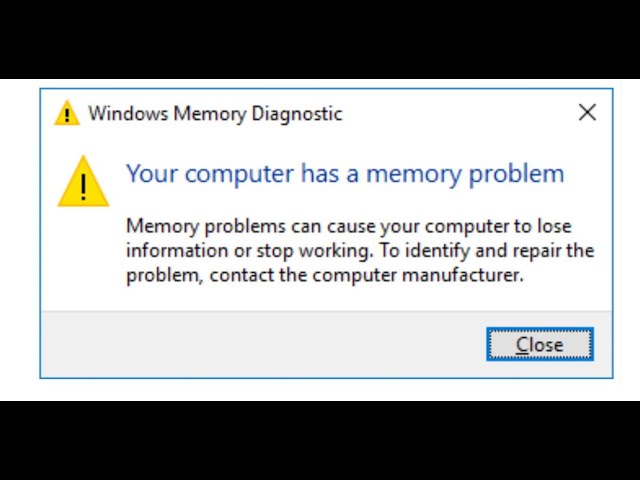
Windows has a tool called Windows Memory Diagnostic.
- Press Windows key + R, type mdsched.exe and hit Enter.
- Click Restart now and check for problems.
- Your computer will restart and check for memory errors.
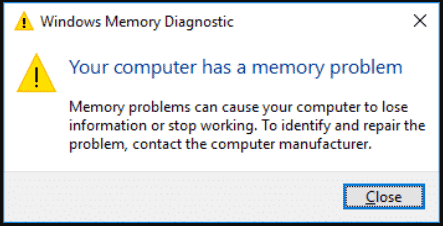
The test may take a few minutes. Once it’s done, you’ll see the results once you log back in. If you see errors, you probably have a RAM problem.
Apple Diagnostics for Mac users:
- Shut down your Mac.
- Turn it on and immediately press the D key.
- Follow the instructions on screen to run the test.
Apple Diagnostics tests more than just RAM, it tests other hardware too. If it finds a memory issue, it will show a code that you can search online to learn more.
Third Party Tools
Some sophisticated tools can search for deeper problems:
- MemTest86 (Free USB bootable tool)
- Crucial System Scanner (Finds RAM that works)
MemTest86 is especially good at finding errors that the built-in tools might miss. It does a more thorough set of tests and can take an hour or more depending on amount of ram.
Check Task Manager
On Windows, open Task Manager (Ctrl + Shift + Esc) and look at the “Memory” section. If you are using close to 100 % of your ram with only a few programmes open , you may have a memory problem .
Look for patterns: Does memory spike when you launch certain apps or stay high even when idle? Sometimes there is a memory leak in an app and it will eat more and more RAM as time goes by.
Physical Examination
Sometimes the problem is physical. Check RAM sticks by opening the computer case:
- Dusty or loose?
- “See any damage?”
Even dust in small amounts can cause problems. Look for bent pins or corrosion on the contacts that may inhibit a good connection.
Common Errors
Many newbies skip diagnosis and just buy new RAM. If the problem is truly software or settings, then this is money wasted. It’s usually better to check for software problems first since they’re easier and less expensive to fix.
Solving software memory errors
Not all memory problems require hardware changes. Software can also be the culprit in causing memory leaks or overuse.
Close Unneeded Programmes
RAM is eaten up by too many open apps. Close any programmes you don’t need. For example, if you have a browser with a lot of tabs open, try closing tabs you do not need.
Disable Startup Programs
Some programmes run automatically and take up memory. To handle them:
- Open up Task Manager.
- Open the “Startup” tab.
- Switch off any programmes you don’t need to start up.
Some apps like messaging tools or cloud services start without you even knowing. Turning them off frees up memory and can make your boot faster.
Software Updater
Old software can leak memory. Always keep your operating system and apps up to date. Most of the updates will be bug fixes to improve memory handling.
Memory leaks are well-known in older versions of browsers and office applications. Keeping everything up to date reduces risk and increases stability.
Scan For Malware
Malware can use up RAM and slow down your computer. Run a complete scan with Windows Defender or other trusted antivirus. Malware can run in the background, consuming memory and crashing your system.
If you are using a free antivirus programme, make sure it comes from a reputable source. Some fake antivirus programmes are actually malicious software.
Change Virtual Memory
Windows will start using virtual memory (a file on your hard drive called the pagefile) when the RAM is full. Virtual memory can help: increase it:
- Open Control Panel > System > Advanced system settings.
- Click Performance under Settings.
- Click on “Advanced,” then “Change” under Virtual Memory.
- Increase the size (usually 1.5 times your RAM size)
When real RAM is low, it is useful, but it is slower than real RAM. It’s a handy fix, but not a substitute for adding more RAM if you need more.
Table of Typical Software Fixes and Their Impact
| Correction | Estimated speed improvements | Level of Difficulty |
|---|---|---|
| Startup apps Disable | 10-30% | Basic |
| Actualise el software | 5-20% | Basic |
| Increase the size of virtual memory | 5-15% | Medium |
| Malware Removal | 20-40% | Medium |
Troubleshooting memory problems
Sometimes, the problem is the RAM itself. Here are some things you can do:
Resetting RAM modules
RAM can get loose or dusty. Turn off your computer, unplug it, and open the case.
- Locate the RAM sticks.
- Carefully remove them.
- Clean contacts with a soft, dry cloth.
- Carefully reinsert them.
This resolves a lot of issues with a bad connection. Do not touch the gold contacts with your fingers, because oils can cause connection problems.
How to upgrade your RAM
If your computer has less than 8GB of RAM, you should upgrade. For most modern tasks (browsing, office, streaming) at least 8 GB is needed. Gaming and editing require 16 GB or more.
One of the simplest ways to accelerate old PCs is to upgrade RAM. Check how many RAM slots your motherboard has so you can add more without pulling out old sticks.
Compatibility of RAM
Not all RAM will fit in every computer. You can look up the specs for your motherboard, or try a tool like the Crucial System Scanner.
Motherboards support specific types of RAM (DDR3, DDR4, DDR5) and speeds. The wrong type will prevent your PC from starting.
Replacement of Faulty RAM
If the tests reveal errors, you’ll need to replace the RAM. Get a compatible stick and install it.
If you’re unsure, take the faulty stick to a computer store and compare it. Typically, adding new RAM is as simple as pushing it into its slot until it snaps into place.
Table of Data: Ram Sizes and Typical Uses
| Memory Size | Best Suited For | Performance Effect |
|---|---|---|
| 4 GB, | Basic tasks (e-mail, web) | Low: |
| 8GB RAM | Streaming, Office | Medium |
| 16 GB. | Editing, Gaming | Alto |
| 32 GB and more | Heavy multitasking workstation, | Very High |
Common Errors
Mixing different types or brands of RAM can result in instability. Always match RAM specs (speed, type, voltage). Mismatched RAM can work, but might cause random crashes and performance drops.
Advanced Troubleshooting Steps
If basic fixes don’t work, try these advanced steps:
Bios Settings
Your BIOS controls hardware settings. Enter BIOS (usually by pressing F2 or DEL at startup):
- Reset to default settings
- Enable XMP profiles for RAM (improves speed)
XMP profiles let RAM run at its rated speed. Without XMP, RAM may run slower than advertised, reducing performance.
Check Motherboard Compatibility
Not all motherboards support all RAM types or sizes. Check your manual or manufacturer’s website.
If you install more RAM than your motherboard supports, your PC may not boot, or may only use part of the RAM.
Test Each Ram Stick
If you have multiple RAM sticks, remove all but one and test. Switch sticks to find the faulty one.
This process helps pinpoint which stick is causing problems. Mark each stick so you can track which is tested.
Data Table: Signs Of Hardware Failure Vs. Software Issues
| Symptom | Likely Cause | Recommended Action |
|---|---|---|
| Blue screen errors | Hardware | Test RAM, replace if faulty |
| Slow performance | Software | Close apps, scan for malware |
| App crashes | Either | Run diagnostics |
| System won’t start | Hardware | Check RAM seating |
Seek Professional Help
If you’re uncomfortable opening your PC or BIOS, or if problems persist after all steps, consider professional repair. Some issues, like motherboard damage, need expert tools and skills.
Non-obvious Tips For Beginners
- Check RAM Warranty: Many RAM sticks have lifetime warranties. If yours fails, check the manufacturer’s website for free replacement.
- Monitor Temperatures: Overheating can cause memory errors. Use tools like HWMonitor to check your PC’s temperature.
You can also try running your PC with the case open for a short time to see if cooling improves performance, but don’t leave it open permanently.
When To Upgrade Or Replace Your Computer
Sometimes, fixing memory issues isn’t enough. If your PC is more than 6–8 years old, or upgrading RAM doesn’t help, you may need to consider a new machine. New computers use faster memory and processors, making them more efficient.
If your motherboard only supports old RAM types (like DDR2), upgrading just the RAM won’t solve modern software demands. Newer systems are quieter, more energy-efficient, and less prone to hardware errors.
Preventing Future Memory Problems
A few simple habits can keep your computer running smoothly:
- Regularly update software and drivers
- Run malware scans monthly
- Keep your PC clean inside and out
- Avoid running too many programs at once
- Backup important data in case of hardware failure
Also, check for dust buildup every few months. Dust not only affects RAM but can also cause overheating and damage other parts.

Frequently Asked Questions
What Causes Computer Memory Problems?
Memory problems can come from hardware faults, like damaged RAM, or software issues, such as memory leaks or malware. Dust, overheating, and old computers are also common causes.
How Can I Tell If My RAM Is Faulty?
Use Windows Memory Diagnostic or MemTest86. Frequent crashes, blue screens, and random restarts are strong signs. Physical inspection can also reveal damage. If you notice your computer only crashes when under heavy load (like gaming or editing), this often points to RAM issues.
Is It Safe To Mix Different Brands Or Sizes of RAM?
While it’s possible, mixing RAM can cause instability. It’s best to use matched RAM sticks for reliable performance. Always match speed and type. If you must mix, install matching pairs in the correct slots and monitor for issues.
How Much RAM Do I Need For Daily Use?
For basic tasks like web browsing and office work, 8 GB is enough. For gaming, video editing, or multitasking, 16 GB or more is better. Consider your habits—if you often use multiple apps at once, more RAM helps.
Where Can I Learn More About Ram And Computer Memory?
You can find detailed information on Wikipedia about computer memory types, uses, and troubleshooting.
Solving computer memory issues doesn’t need to be scary or expensive. With careful diagnosis and the right fixes, you can make your computer fast and reliable again. Remember to check both software and hardware, and don’t rush to buy new parts unless you’re sure it’s necessary.
By following these steps, you’ll become confident in handling memory problems—and keep your PC running at its best.