What Computer is Best for Video Editing can feel overwhelming, especially when technology is changing fast and video files are getting larger and more complex. Whether you’re a content creator, filmmaker, student, or hobbyist, the right computer will save you hours of frustration and help you turn your creative ideas into reality.
But what makes one computer better than another for video editing? How do you balance performance, price, and features? Let’s break everything down so you can make a smart, confident choice.
Key Factors That Matter In A Video Editing Computer
Not all computers are built equally for video editing. Some machines struggle with 4K footage, while others handle it with ease. Understanding the main components will help you avoid common pitfalls and get the most value for your money.
Processor (CPU)
The CPU is the “brain” of your computer. For video editing, you want a CPU with multiple cores and high clock speeds. More cores mean the computer can handle more tasks at once, which is important when applying effects or rendering video.
- For 1080p editing: Quad-core CPUs are the minimum, but a 6-core or 8-core is better.
- For 4K or higher: 8-core or more is ideal.
Non-obvious insight: Video editing software like Adobe Premiere Pro and DaVinci Resolve use both the CPU and GPU, but some features (like rendering and timeline playback) are CPU-heavy. So, a weak CPU will slow down your workflow even if you have a strong GPU.
Graphics Card (gpu)
The GPU (graphics card) helps with rendering, effects, and playback. Many editors think only the CPU matters, but a strong GPU can dramatically speed up video exports and effects.
- Look for at least 4GB of VRAM for Full HD editing.
- For 4K and heavy effects: 6GB or more VRAM is better.
Non-obvious insight: Not all video editing software uses the GPU equally. For example, DaVinci Resolve relies heavily on the GPU for color grading, while Premiere Pro uses both CPU and GPU but benefits more from a strong CPU in some tasks.
Ram (memory)
RAM lets your computer store short-term data for quick access. When editing, more RAM means smoother previews and less waiting.
- Minimum for Full HD: 16GB
- For 4K and complex projects: 32GB or more
Don’t ignore RAM—running out will cause slowdowns and crashes.
Storage
Video files are large. Fast storage means less waiting when loading files, saving projects, or rendering.
- SSD (Solid State Drive): Much faster than HDD. Boot your operating system and store projects here.
- HDD (Hard Disk Drive): Good for storing finished videos and backups.
A common setup is a smaller SSD (500GB–1TB) for work-in-progress files and a larger HDD (2TB or more) for long-term storage.
Display
The screen is often overlooked, but color accuracy and resolution matter a lot for video editing.
- Full HD (1920×1080) is the minimum.
- 4K displays give more space and detail.
- IPS panels have better color accuracy than TN panels.
If you’re editing professionally, consider an external calibrated monitor.
Ports And Expandability
Many video editors use external drives, card readers, and monitors. Make sure your computer has enough USB ports, Thunderbolt, HDMI, and SD card slots for your devices.
Cooling And Noise
Video editing puts a heavy load on your computer, making it hot. A good cooling system keeps performance high and noise low. Overheating can cause crashes and slowdowns.
Best Desktop Computers For Video Editing
Desktops offer the most power for the price and are easier to upgrade. Here are the top choices, each with strengths for different users.
Apple Mac Studio (m2 Max Or M2 Ultra)
The Mac Studio is Apple’s compact powerhouse. The M2 Max and M2 Ultra chips are extremely fast, especially for video editing in Final Cut Pro, Adobe Premiere Pro, and DaVinci Resolve.
- Up to 24-core CPU and 76-core GPU (M2 Ultra)
- Supports up to 192GB unified memory
- Multiple Thunderbolt 4 ports
- Super quiet under heavy load
The Mac Studio shines with 4K and 8K workflows. Its price is high, but for professionals, the speed and reliability save hours.
Dell Xps Desktop
The Dell XPS Desktop is a favorite for Windows users. It’s highly customizable, allowing you to pick the best CPU (Intel Core i7/i9 or AMD Ryzen 7/9), GPU (NVIDIA RTX 3060, 3070, or 4080), and plenty of RAM.
- Easy to upgrade over time
- Multiple USB and HDMI ports
- Good cooling for quiet operation
This is a smart investment if you want something reliable and future-proof.
HP Omen 45l
While marketed as a gaming PC, the HP Omen 45L packs the power needed for heavy video editing.
- Up to Intel Core i9 or AMD Ryzen 9
- High-end NVIDIA or AMD GPUs
- Liquid cooling for quiet performance
Gamers and editors both love this machine for its speed and cooling efficiency.
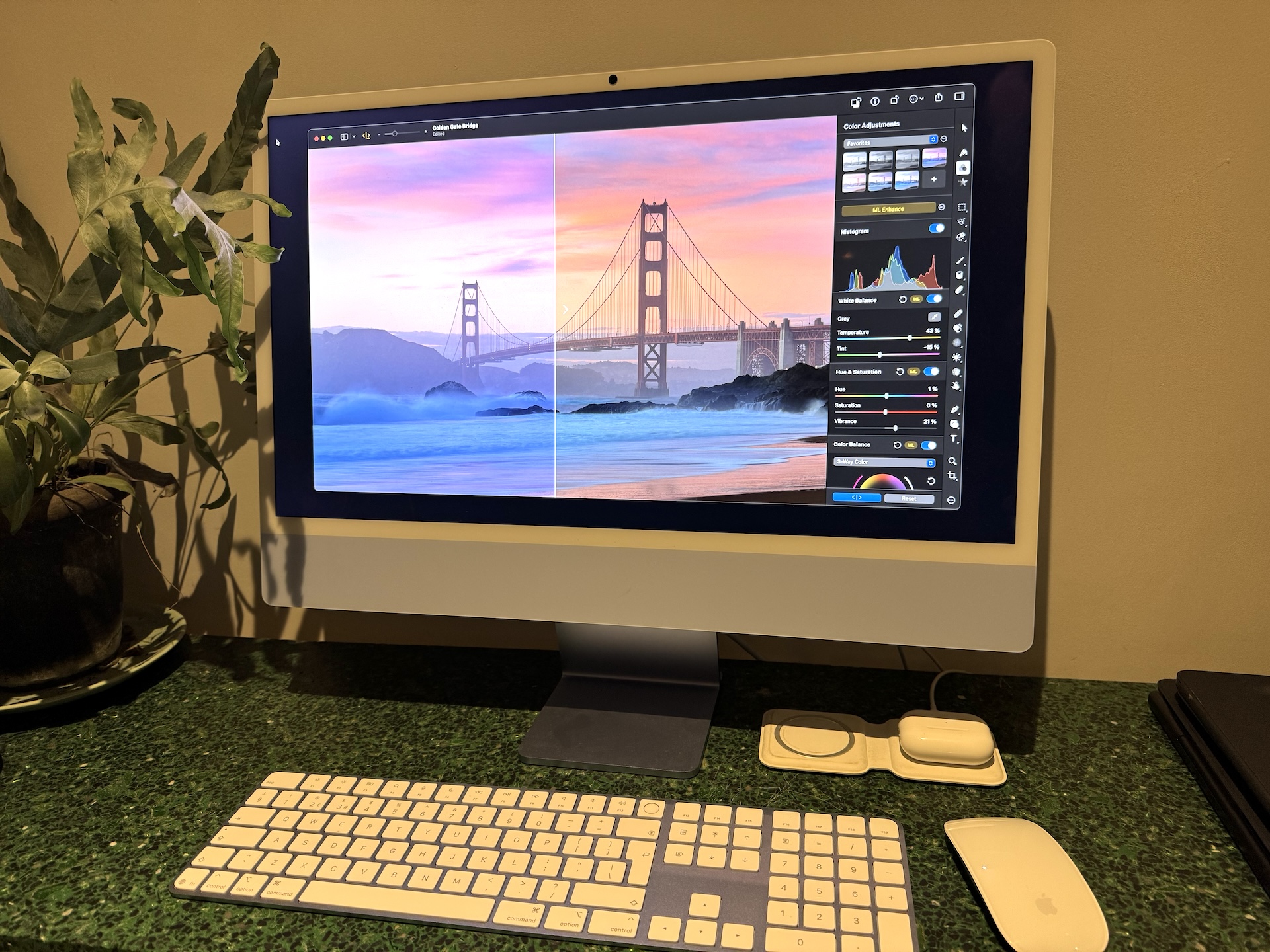
Apple iMac 24” (m3)
For those who want an all-in-one, the iMac 24” with M3 chip is a beautiful, quiet, and simple solution.
- Up to an 8-core CPU and a 10-core GPU
- Stunning 4.5K Retina display
- Slim and silent design
It’s not as powerful as the Mac Studio, but great for 1080p and light 4K projects.
Custom-built Pc
Building your own PC lets you get the best value and choose every part for your needs.
Example build for 4K editing:
- AMD Ryzen 9 7900X or Intel Core i9-13900K
- NVIDIA RTX 4070 or AMD Radeon RX 7900 XT
- 32GB DDR5 RAM
- 1TB NVMe SSD + 4TB HDD
You can upgrade parts over time, so your investment lasts longer.
Alienware Aurora R15
The Alienware Aurora R15 is another high-performance desktop, known for its futuristic design and strong hardware.
- Intel or AMD CPUs up to 24 cores
- NVIDIA RTX 4080/4090 GPUs
- Advanced cooling
It’s great for editors who need maximum speed for effects-heavy projects.
Apple Mac Mini (m2)
For those on a budget, the Mac Mini (M2) gives surprising video editing power.
- Up to 10-core CPU and 10-core GPU
- Small and quiet
- Affordable compared to other Macs
Great for students or those editing 1080p and basic 4K videos.
Microsoft Surface Studio 2+
The Surface Studio 2+ is unique—a big touchscreen all-in-one, great for creative workflows.
- 28-inch PixelSense display (4500 x 3000)
- Intel Core i7 CPU
- NVIDIA RTX 3060 GPU
Its screen and pen support are perfect for storyboard artists and editors who want to draw directly on the footage.
Best Laptops For Video Editing
Laptops offer portability, but you’ll need to balance power, weight, and battery life. Here are the top picks:
Apple Macbook Pro (m2 Pro/m2 Max)
The MacBook Pro (14” or 16”) with M2 Pro or M2 Max chips is the gold standard for mobile editing.
- Up to 12-core CPU and 38-core GPU
- 32GB or 64GB unified memory
- Liquid Retina XDR display (super bright and color accurate)
- Long battery life
Editors praise its quiet operation and ability to handle 8K files on the go.
Dell Xps 15/17
The Dell XPS 15 and XPS 17 are favorite Windows options for creators.
- Intel Core i7/i9 CPUs
- NVIDIA RTX 4060 or 4070 GPU
- Up to 64GB RAM
- 4K OLED or touch screen
Their screens are beautiful, and the build quality is excellent.
Asus Rog Zephyrus G14/g16
The ASUS ROG Zephyrus series is known for blending power and portability.
- AMD Ryzen 9 or Intel Core i9 CPUs
- NVIDIA RTX 4060/4070 GPUs
- Great battery life for a high-power laptop
It’s lighter than many other powerful laptops, making it easier to carry.
Hp Spectre X360 16
The HP Spectre x360 16 is a versatile 2-in-1 laptop with a color-accurate 4K OLED display.
- Intel Core i7/i9 CPUs
- NVIDIA RTX 4050/4060 GPU
- Touchscreen and stylus support
Perfect for editors who want to sketch or work in tablet mode.
Lenovo Legion Pro 7i
The Lenovo Legion Pro 7i is a powerful gaming laptop that excels in editing.
- Intel Core i9 or AMD Ryzen 9 CPU
- NVIDIA RTX 4080 GPU
- 32GB RAM standard
It’s heavier, but the raw power is great for fast rendering.
Microsoft Surface Laptop Studio 2
For creative professionals, the Surface Laptop Studio 2 offers pen support and a flexible screen.
- Intel Core i7/i9 CPUs
- NVIDIA RTX 4060 GPU
- 14.4-inch 120Hz touchscreen
It’s ideal for editors who also do animation or illustration.
Gigabyte Aero 16 Oled
The Gigabyte Aero 16 is made for creators.
- 16-inch 4K OLED display (super color accurate)
- Intel Core i9 CPU
- NVIDIA RTX 4070 GPU
If display quality is your top concern, this is a strong choice.
Comparing Key Specs: Desktops Vs. Laptops
To help you understand the differences, here’s a quick comparison of typical high-end desktop and laptop specs for video editing:
| Component | Desktop | Laptop |
|---|---|---|
| CPU | Intel Core i9 / AMD Ryzen 9 | Intel Core i7/i9 / Apple M2 Max |
| GPU | NVIDIA RTX 4080 / 4090 | NVIDIA RTX 4070 / Apple M2 Max GPU |
| RAM | 32–128GB | 16–64GB |
| Storage | 1TB+ SSD + 4TB HDD | 1–2TB SSD |
| Display | External, up to 8K | 15–17” built-in, 4K OLED |
| Price | $2,000–$8,000+ | $1,500–$5,000 |
Desktops give you more power and upgrade options. Laptops are for editing on the go, but with some trade-offs in power and upgradability.
How To Choose: Step-by-step Guide
Selecting the best computer for video editing depends on your needs, budget, and workflow. Follow these steps for a confident choice.
1. Define Your Editing Needs
- Type of footage: 1080p, 4K, or 8K? More pixels need more power.
- Project size: Short YouTube videos or feature-length films?
- Software: Different programs use hardware differently. Check their requirements.
2. Set Your Budget
More money means more speed, but you don’t need to overspend. Decide what you can afford and prioritize the features that matter most.
3. Choose Desktop Or Laptop
- Desktops are best for raw power, upgradability, and cooling.
- Laptops are for travel, school, or working anywhere.
4. Match Specs To Your Workflow
- 1080p editing: Quad-core CPU, 16GB RAM, entry GPU
- 4K editing: 6–8-core CPU, 32GB RAM, mid/high GPU
- 6K/8K or heavy effects: 12+ core CPU, 64GB+ RAM, top GPU
5. Don’t Forget The Display
Color accuracy is critical. If your computer’s display isn’t good, invest in a professional monitor.
6. Check Ports And Expandability
Will you need lots of external drives, SD card readers, or extra monitors? Make sure your computer supports them.
7. Plan For The Future
If possible, buy a computer you can upgrade later (more RAM, bigger SSD, new GPU). This extends the life of your investment.
Common Buyer Mistakes
Many buyers spend money in the wrong places or overlook important details. Avoid these traps:
- Underestimating RAM needs: 8GB is not enough for modern video editing.
- Buying the most expensive GPU: Not all software uses the GPU the same way. Balance CPU and GPU.
- Ignoring storage speed: Slow hard drives slow down your whole workflow.
- Choosing a bad display: Cheap screens can show colors incorrectly, ruining your edits.
- Forgetting about cooling and noise: Overheating leads to crashes and reduced performance.
- Not checking software compatibility: For example, some effects in Premiere Pro only work with NVIDIA GPUs.
Budget Breakdown: What To Expect
Here’s a rough guide to how far your money goes with new computers for video editing:
| Price Range | What You Get | Best For |
|---|---|---|
| $800 – $1,200 | Entry-level quad/hex-core CPU, 16GB RAM, basic GPU, 512GB SSD | 1080p, simple edits, students |
| $1,200 – $2,000 | Fast 6–8-core CPU, 32GB RAM, mid-tier GPU, 1TB SSD | 4K projects, YouTube creators |
| $2,000 – $4,000 | High-end 8–16-core CPU, 64GB RAM, top GPU, 2TB SSD | Heavy 4K/6K, professionals |
| $4,000+ | Workstation CPUs, 128GB+ RAM, multi-GPU, massive SSDs | Feature films, 8K, studios |
Tip: Many professionals buy a mid-range computer and upgrade storage or RAM as their needs grow.
Should You Buy New Or Upgrade Your Current Computer?
Sometimes, upgrading your current desktop is smarter than buying new. Here’s when it makes sense:
- You have a recent CPU (less than 3 years old)
- Your motherboard supports more RAM or faster storage
- Your case can fit a new GPU
Typical upgrades:
- Add more RAM (from 16GB to 32GB or more)
- Swap to a faster SSD
- Upgrade to a better GPU
If your CPU or motherboard is very old (5+ years), a new system may be more cost-effective.

Software Optimization: Getting The Most From Your Computer
Even the best hardware can feel slow if your software isn’t set up right. Here are ways to maximize your editing speed:
- Keep software updated: New versions often improve performance.
- Use proxy files: Edit with lower-resolution copies, then export at full quality.
- Optimize scratch disks: Store temporary files on your fastest SSD.
- Close background apps: Free up memory and CPU.
- Tweak settings: Some programs let you choose which GPU to use or how much RAM to allocate.
Bonus tip: Learn keyboard shortcuts and organize your media for a faster workflow.
Real-world Scenarios: Which Computer Is Best For You?
Let’s look at some common editing situations to help you choose:
Student Editing For Youtube
- Best pick: Mac Mini (M2) or Dell XPS Desktop with i5/i7 CPU, 16GB RAM
- Why: Affordable, reliable, and enough power for 1080p/4K YouTube content
Freelance Videographer
- Best pick: MacBook Pro (M2 Pro) or Dell XPS 15
- Why: Portable, color-accurate screen, fast export speeds
Studio Professional
- Best pick: Mac Studio (M2 Ultra) or custom PC with Ryzen 9/i9, RTX 4080, 64GB RAM
- Why: Handles massive files, heavy effects, and can be upgraded
Travel/on-location Editor
- Best pick: ASUS Zephyrus G14 or Surface Laptop Studio 2
- Why: Lightweight, strong battery, can handle 4K
Animator/colorist
- Best pick: Surface Studio 2+ or Gigabyte Aero 16 OLED
- Why: Large, color-accurate touchscreen displays, pen support
Future Trends In Video Editing Computers
Video editing is changing quickly. Here’s what’s coming:
- Apple Silicon: The M2 and M3 chips are changing what’s possible, especially for battery life.
- AI acceleration: New CPUs and GPUs use AI for faster effects and rendering.
- Thunderbolt 4/USB 4: Faster ports mean easier use of external drives.
- 8K and VR: Computers are getting ready for even larger files and immersive editing.
Advice: Buy a computer that’s a little more powerful than you need today. This will help you stay productive for years as software and files get bigger.
Frequently Asked Questions
What Is The Minimum Computer Spec For Video Editing?
For basic 1080p editing, you need at least a quad-core CPU, 16GB RAM, and a dedicated GPU with 4GB VRAM. For 4K, aim for a 6-core CPU, 32GB RAM, and a stronger GPU. An SSD is highly recommended for speed.
Should I Choose Mac Or Windows For Video Editing?
Both platforms are excellent. Macs are popular for Final Cut Pro and are known for stability and color accuracy. Windows PCs are more customizable, often cheaper for the same power, and run all major editing software. Choose based on your preferred software and budget.
Is A Gaming Computer Good For Video Editing?
Yes. Gaming computers have fast CPUs and strong GPUs, which are ideal for video editing. Just make sure you have enough RAM and a good SSD. Sometimes, you may need to calibrate the display for accurate colors.
Can I Use An External Gpu (egpu) For Video Editing?
External GPUs can boost laptop performance, especially for rendering and effects. However, they are usually less efficient than a built-in GPU and can be expensive. Check your laptop’s compatibility before buying.
Where Can I Find More Detailed Benchmarks For Editing Computers?
You can find up-to-date benchmarks for video editing on Puget Systems, a trusted resource for creative professionals.
The best computer for video editing is the one that fits your workflow, budget, and future needs. Understand what matters most, avoid common mistakes, and your editing experience will be smooth, fast, and enjoyable.