
Best DisplayPort Cable for Gaming: A Complete Buying Guide
A smooth gaming experience depends on more than a powerful graphics card and a high-refresh-rate monitor. The cable connecting your PC to your display also plays an important role. If the cable cannot reliably handle your chosen resolution and refresh rate, you may experience screen flickering, black screens, or limited display settings.
With so many cable options available, choosing the right one can feel confusing. You may see DisplayPort 1.4, DisplayPort 2.1, different bandwidth ratings, braided designs, and claims about 4K or 8K gaming. However, you do not necessarily need the most expensive option to enjoy excellent performance.
The best DisplayPort cable for gaming is one that supports your monitor’s resolution and refresh rate, works with your graphics card, and provides a stable connection at the length you need.
In this guide, we will explain the main DisplayPort standards, important features to consider, common buying mistakes, and practical ways to choose a cable that fits your gaming setup.
Why Does DisplayPort Matter for Gaming?
DisplayPort is a digital video connection commonly used between desktop computers and gaming monitors. It can transmit high-resolution video and audio through a single cable, making it convenient for modern gaming setups.
One of its biggest advantages is its support for high refresh rates. Depending on the DisplayPort version, graphics hardware, monitor capabilities, resolution, and display settings, it can support demanding configurations designed for competitive and immersive gaming.
For example, competitive gamers may prefer 1080p at 240Hz or higher because a high refresh rate can make motion appear smoother. Other players may prefer 1440p or 4K for sharper details and more immersive environments.
DisplayPort can also support adaptive synchronization technologies on compatible devices. These technologies help coordinate the monitor’s refresh rate with the graphics card’s output to reduce visible tearing and improve perceived smoothness.
However, the cable cannot upgrade hardware limitations. Your graphics card, monitor, connection type, and settings must all support the display mode you want to use.
DisplayPort 1.4 vs. DisplayPort 2.1
Understanding the difference between these standards is one of the easiest ways to narrow down your options.
DisplayPort 1.4
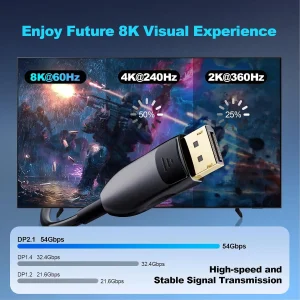
DisplayPort 1.4 supports a maximum raw link bandwidth of 32.4 Gbps. It remains a capable option for many gaming setups, particularly those using 1080p or 1440p monitors with high refresh rates.
It can also support demanding 4K configurations when the source and display have the necessary capabilities. Display Stream Compression (DSC), when supported, can help enable higher resolutions and refresh rates within available bandwidth.
For many mainstream gaming PCs, a good-quality cable compatible with the required DisplayPort 1.4 link rate is sufficient.
DisplayPort 2.1
DisplayPort 2.1 introduces higher-bandwidth capabilities through Ultra High Bit Rate (UHBR) signaling. Depending on the supported link rate, compatible hardware, and cable certification, it can provide substantially more bandwidth than older configurations.
VESA’s DP54 and DP80 cable categories identify cables certified for different UHBR performance levels. DP54 supports up to 54 Gbps raw bandwidth, while DP80 supports up to 80 Gbps.
These higher-bandwidth options can be useful for demanding high-refresh-rate 4K displays and other advanced monitor configurations. However, the exact resolution and refresh rate depend on the complete system, including color depth and whether DSC is used. Source: VESA DisplayPort FAQ
Which Version Should You Choose?
Choose according to your actual hardware rather than buying a cable based only on its version number.
- 1080p gaming: A suitable, reliable cable for your monitor’s maximum refresh rate is usually enough.
- 1440p gaming: Check the monitor’s maximum refresh rate and the bandwidth required by your selected settings.
- 4K high-refresh gaming: Look carefully at the GPU, monitor specifications, and required cable certification.
- Advanced high-bandwidth displays: Consider a VESA-certified DP54 or DP80 cable when your hardware needs that performance level.
An older cable may work perfectly well with compatible equipment. A newer cable does not automatically increase frame rates or improve image quality beyond what your devices support.
Key Features to Look for When Buying a Gaming Cable
Before purchasing, compare a few practical features that influence compatibility and reliability.
1. Bandwidth and Refresh Rate Support
Bandwidth determines how much display data a connection can carry. Higher resolutions, faster refresh rates, and certain color settings require more bandwidth.
For example, 4K at 144Hz places different demands on a connection than 1080p at 60Hz. HDR and higher color depths can also affect the bandwidth required.
Check your monitor’s manual or specifications page to identify its supported resolution and refresh rate. Then verify that your graphics card and cable can support the same configuration.
Do not rely only on a product title that promises 4K or 8K. Look for clear bandwidth specifications and relevant certification.
2. VESA Certification
VESA certification is a useful way to evaluate whether a cable has been tested for the performance it claims to support.
For newer high-bandwidth setups, look for the appropriate certified cable category. DP54 and DP80 indicate different UHBR capabilities, so choose the category that matches your hardware requirements.
You can check the official DisplayPort website and its certified-products database to verify listed products.
Certification details matter more than vague marketing phrases such as “ultra-premium,” “gaming-grade,” or “maximum performance.” A well-certified cable from a reputable manufacturer is generally a more sensible purchase than an unverified cable with impressive packaging.
3. Cable Length
Cable length is another important consideration. A longer cable can be more convenient when your computer sits far from your monitor, but maintaining reliable high-bandwidth signaling becomes more challenging as the cable length increases.
For a typical desk setup, a cable around 1 to 2 meters is often convenient. It provides enough room to arrange your PC and monitor without leaving excessive cable behind the desk.
If you need a longer connection, verify that the exact cable model and length are rated for your required performance. Active or optical DisplayPort cables may be appropriate for some longer installations, depending on device compatibility.
Avoid choosing a cable that is unnecessarily long simply because it looks more flexible for future use.
4. Build Quality and Connectors
A cable should remain securely connected during everyday use. Look for connectors that fit properly, a durable outer jacket, and strain relief near both ends.
Braided cables may provide extra protection against certain types of wear, but braiding alone does not guarantee better signal performance.
Some DisplayPort connectors have locking mechanisms to help prevent accidental disconnection. If the cable includes a latch, check how it releases before pulling it out.
Good construction is useful, but bandwidth compliance and signal reliability should remain your primary priorities.
5. Compatibility With Your Devices
Before ordering, confirm that your graphics card or laptop has a compatible DisplayPort output and that your monitor has the appropriate input.
Some laptops support DisplayPort through USB-C, but only when the USB-C port supports DisplayPort Alt Mode or an appropriate compatible video connection. A USB-C port’s physical shape alone does not guarantee video output.
Adapters, docking stations, and KVM switches can introduce additional limitations. If your setup uses any of these devices, verify that the entire connection supports the desired resolution and refresh rate.
How to Choose the Right Cable for Your Gaming Setup
The best DisplayPort cable for gaming depends on what you play, which monitor you own, and how your PC is connected.
For Competitive Gaming
If you play fast-paced games such as first-person shooters or competitive racing titles, you may prioritize high refresh rates and responsive gameplay.
A 1080p or 1440p monitor running at 144Hz, 240Hz, or higher may be a good fit for this type of setup. Choose a cable that supports the monitor’s full refresh-rate capability at your selected resolution.
Remember that a cable does not generate additional frames. Your graphics card and game settings determine how many frames your system can render.
For 1440p Gaming
1440p offers a useful balance between visual detail and performance for many PC gamers.
A compatible DisplayPort 1.4 connection can be sufficient for many 1440p monitors, including models with high refresh rates. However, the exact requirements depend on the monitor’s specifications, color settings, and supported link modes.
If you are buying a cable for a new monitor, check its recommended connection and maximum supported refresh rate rather than assuming every 1440p display has identical requirements.
For 4K Gaming
4K gaming provides sharp visuals and detailed environments, but higher refresh rates can require significantly more bandwidth.
Check whether your monitor and GPU support the target mode through DisplayPort and whether that mode uses DSC. If your equipment requires a higher-bandwidth link, select the appropriate certified cable.
For advanced displays, a suitable DP54 or DP80 cable may be worthwhile. However, buying a DP80 cable will not unlock a refresh rate that your monitor or graphics card cannot support.
For Multi-Monitor Gaming Setups
If you use more than one monitor, check the available outputs on your graphics card and the supported modes for each display.
DisplayPort Multi-Stream Transport (MST) can support multiple displays through compatible equipment. However, the total bandwidth and the capabilities of your GPU, monitor, hub, or docking station determine which combinations work.
For a straightforward dual-monitor setup, connecting each display directly to a separate compatible output can simplify troubleshooting.
Does a More Expensive DisplayPort Cable Improve Gaming Performance?
Not necessarily.
DisplayPort carries digital data, so a properly functioning cable that supports the required bandwidth does not normally produce a sharper image or more accurate colors simply because it costs more.
A poor-quality or unsuitable cable can cause problems such as flickering, signal dropouts, or failure to maintain the desired display mode. In those situations, replacing it with a suitable cable may solve the problem.
However, paying extra for decorative finishes, premium packaging, or marketing claims does not automatically improve gameplay.
Focus on verified specifications, certification, the length you need, and the manufacturer’s reputation. This approach helps you avoid spending money on features that do not benefit your particular setup.
Common DisplayPort Cable Problems and How to Fix Them
Even a compatible cable may occasionally experience connection issues. Before replacing your hardware, try these practical troubleshooting steps.
Check the connections: Disconnect the cable carefully and reconnect it firmly at both ends. Make sure it is not loose or under excessive tension.
Verify the refresh rate: Open your operating system’s display settings and select the refresh rate supported by your monitor. Some systems default to a lower setting.
Update your graphics drivers: Outdated drivers can sometimes cause display compatibility problems. Install appropriate drivers from your GPU manufacturer’s official website.
Try another port: If your graphics card or monitor has multiple compatible ports, test another one to help identify the source of the problem.
Reduce cable length: If you are using a long cable, try a shorter, suitable cable to see whether the connection becomes more stable.
Check HDR and color settings: Certain combinations of refresh rate, resolution, HDR, and color depth may require more bandwidth than others. Review the specifications for your particular devices.
If the screen continues to flicker or lose its signal, test with a known-good compatible cable. This can help determine whether the problem comes from the cable or another component.
Frequently Asked Questions
Is DisplayPort better than HDMI for PC gaming?
Neither connection is automatically better in every situation. DisplayPort is widely used for high-refresh-rate PC monitors, while HDMI is common on televisions, consoles, and monitors. Compare the specific capabilities of the ports on your devices before deciding.
Do I need DisplayPort 2.1 for 1440p gaming?
Not necessarily. Many 1440p gaming monitors work well with compatible DisplayPort 1.4 connections. The required cable depends on the refresh rate and display settings you intend to use.
Can a DisplayPort cable increase FPS?
No. A cable does not make your graphics card render more frames. It simply transfers the video signal. A suitable cable can help you access the display modes your hardware already supports.
Is a VESA-certified cable worth buying?
Yes, certification can provide useful evidence that a cable meets the relevant performance requirements. This is particularly helpful when choosing cables for high-bandwidth displays.
How long should my gaming cable be?
Choose the shortest practical length that comfortably connects your computer and monitor. If you need a longer cable, check its certification and supported performance at that exact length.
Final Thoughts
Choosing a gaming display cable does not have to be complicated. Start by checking your monitor’s resolution and refresh rate, then confirm what your graphics card and connection ports support.
For many gamers, a suitable DisplayPort 1.4 cable is enough. More demanding setups may benefit from a certified DP54 or DP80 cable, especially when using high-bandwidth displays.
Ultimately, the best DisplayPort cable for gaming is not necessarily the newest or most expensive model. It is the cable that reliably supports your hardware, provides the bandwidth you need, and fits your desk setup.
Compare specifications, check certification when appropriate, and avoid paying extra for claims that do not translate into a real benefit. With the right connection, you can enjoy the display capabilities your gaming system was designed to deliver.